
Installing WordPress is a straightforward process and you can do it manually or by using one-click installation tools provided by hosting providers control panel.
What is control panel ?
Web hosting control panel that provides a graphical interface and automation tools designed to simplify the process of hosting a website. It is widely used in the web hosting industry and is known for its user-friendly interface, making it easier for website owners to manage various aspects of their hosting environment without needing advanced technical skills.
Manual WordPress Installation:
Download WordPress:
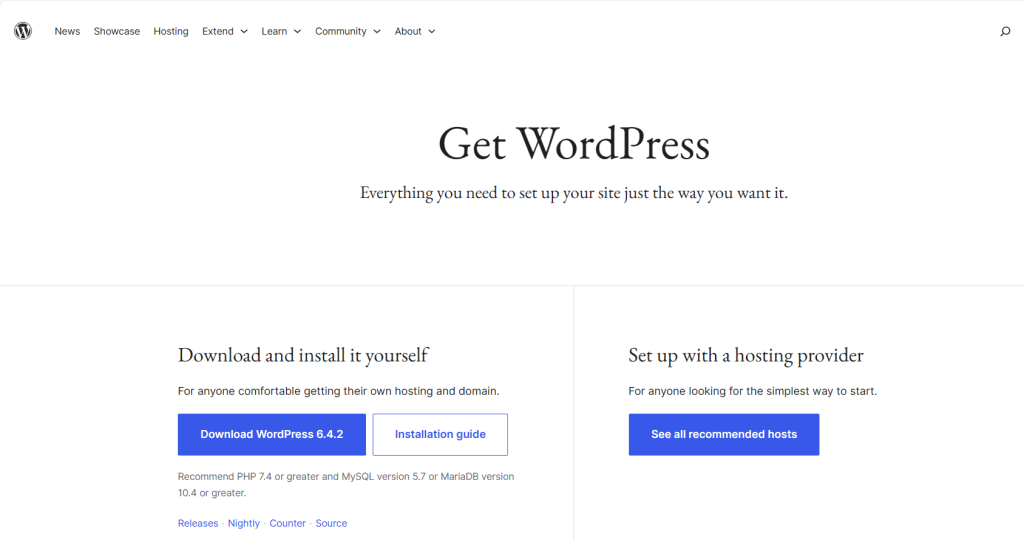
Visit the official WordPress website and click the “Download WordPress” button to get the latest version.
Upload WordPress Files:
Extract the downloaded zip file on your local computer.
Connect to your web hosting account using an FTP client (like FileZilla) or use your hosting control panel file manager.
Upload all the extracted files and directories to the root directory of your web server (usually public_html or www).

Create a Database:
Log in to your hosting control panel (cPanel, Plesk, etc.).
Find the “MySQL Database” or “Database” section.
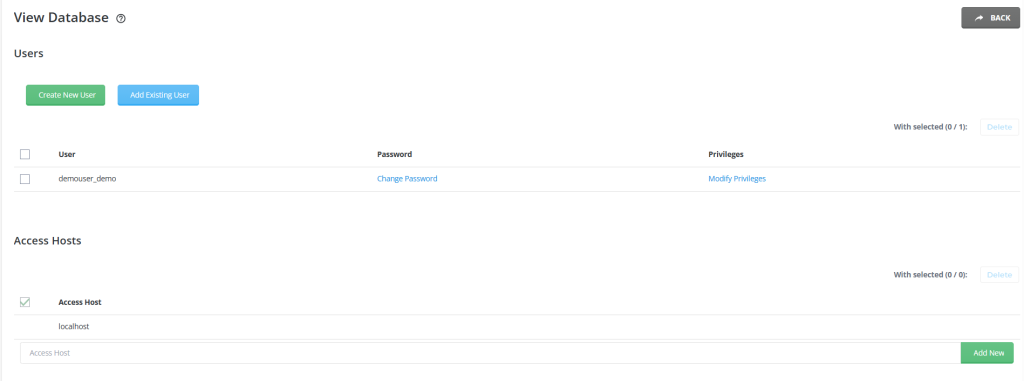
Create a new database and a user with all privileges for that database.
Take note of the database name, username, and password.
Configure wp-config.php:
In the WordPress files you uploaded, find the wp-config-sample.php file.
Rename it to wp-config.php.
Open wp-config.php in a text editor (like Notepad or VSCode).
Find the following lines:
php
Copy code
define(‘DB_NAME’, ‘database_name_here’);
define(‘DB_USER’, ‘username_here’);
define(‘DB_PASSWORD’, ‘password_here’);
Replace ‘database_name_here’, ‘username_here’, and ‘password_here’ with your actual database name, username, and password.

Run the WordPress Installation:
Open your web browser and go to your domain (e.g., http://yourdomain.com).
The WordPress installation wizard will prompt you to set up your language. Choose your language and click “Continue.”
You’ll see a welcome message. Click the “Let’s go!” button.
Enter the database information you created earlier and click “Submit.”
If everything is correct, click “Run the installation.”

Set Up WordPress:
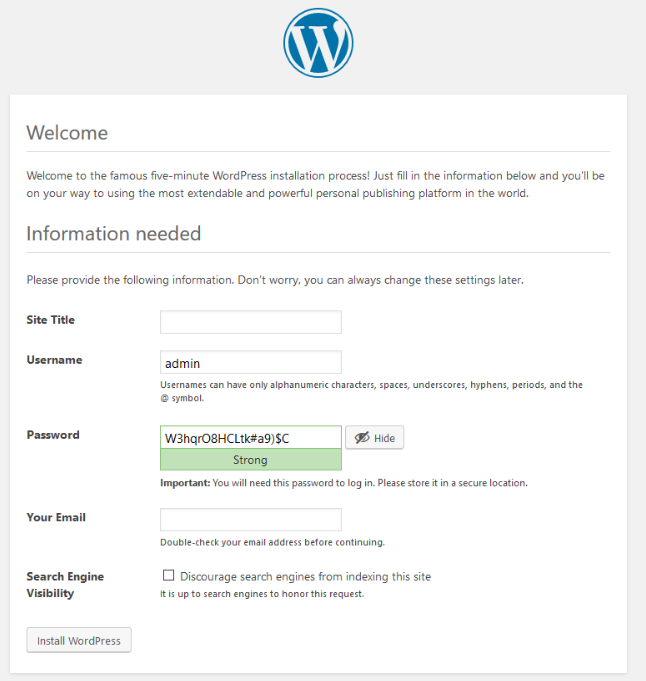
Enter your site title, username, password, and email address.
Check the option to discourage search engines from indexing the site if you’re setting up a development site.
Click “Install WordPress”
Complete Installation:
After the installation, you’ll see a success message.
Log in to your dashboard using the provided credentials.
Congratulations! You’ve successfully installed WordPress manually. From your dashboard, you can start customizing your site, installing themes and plugins, and creating content.
It is a popular open-source content management system (CMS) that is used to create and manage websites and blogs. Here are some key details about WordPress:
- Purpose:
- Its primarily designed for creating and managing websites and blogs. It provides a user-friendly interface, making it accessible for individuals and businesses to publish and organize content on the web.
- Open Source:
- WordPress is an open-source software, which means that its source code is freely available for anyone to view, use, modify, and distribute. This open nature has contributed to its widespread adoption and a large community of developers.
- Content Management System (CMS):
- As a CMS, WordPress allows users to easily create, edit, organize, and publish content without requiring advanced technical skills. It is highly customizable, supporting various types of content, including text, images, videos, and more.
- Themes:
- WordPress uses themes to control the visual appearance of a website. Users can choose from a wide range of pre-designed themes or create their own custom themes to give their site a unique look.
- Plugins:
- Plugins extend the functionality of WordPress. There are thousands of plugins available for tasks such as SEO optimization, e-commerce, social media integration, security, and more. Users can install and activate plugins to add specific features to their websites.
- Community Support:
- It has a large and active community of users and developers. This community contributes to the development of the core software, creates themes and plugins, and provides support through forums, documentation, and tutorials.
- Updates and Security:
- regularly releases updates to improve performance, introduce new features, and address security vulnerabilities. Users are encouraged to keep their installations up-to-date to benefit from the latest improvements and security patches.
- Gutenberg Editor:
- introduced the Gutenberg editor, a block-based editor, which replaced the classic editor. It allows users to create content using blocks, making it more flexible and visual.
- Multi-User and Multi-Site:
- supports multi-user capabilities, allowing multiple users with different roles and permissions to contribute to a website. It also has a multi-site feature that enables the creation of a network of interconnected sites using a single WordPress installation.
- Mobile Responsiveness:
- Modern themes are designed to be responsive, ensuring that websites look and function well on a variety of devices, including smartphones and tablets.
To use WordPress, you typically need a web hosting provider that supports PHP and MySQL, as well as a domain name. Many hosting providers offer one-click installations for WordPress, making it easy to set up. Once installed, users can log in to the admin dashboard to start creating and managing their content.


