
Find FTP Details on cPanel, FTP (File Transfer Protocol) is a widely used method for transferring files between your computer and your web server. It’s an essential tool for web developers and administrators who need to upload, download, or manage website files. If you’re using cPanel to manage your hosting environment, finding your FTP details is quick and straightforward. This guide will show you how to locate your FTP credentials, including the host, username, and port, as well as how to configure FTP accounts for secure access. With these details, you’ll be able to easily connect to your server using an FTP client.
Steps to Find FTP Details on cPanel:
1. Login to cPanel:
- Open your browser and navigate to your cPanel login page, typically accessible via
https://yourdomain.com/cpanelorhttps://yourdomain.com:2083. - Enter your cPanel username and password to access the dashboard.

2. Locate FTP Accounts Section:
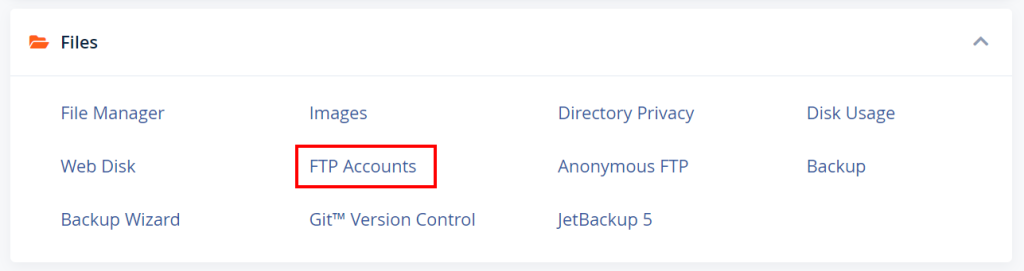
- Once inside the cPanel dashboard, scroll down to the Files section.
- Click on FTP Accounts. This section will show all the existing FTP accounts associated with your domain.
3. Identify the FTP Account:
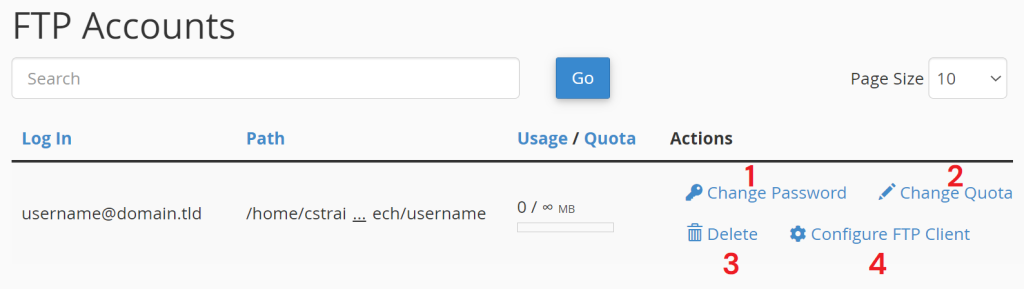
- You will see a list of all FTP accounts created. If you don’t have one, you can create an FTP account here by entering the username and password, and assigning the directory they will have access to.
- To manage an existing account, Find FTP Details on cPanel or reset the password by clicking the Change Password button next to the account.
4. Find FTP Details on cPanel:
- The general FTP connection details are as follows:
- FTP Host/Server: This is typically
ftp.yourdomain.comor your server’s IP address. - Username: The username for the FTP account you want to connect to.
- Password: The password you set when creating the FTP account (or reset).
- FTP Port: Default FTP port is
21.
- FTP Host/Server: This is typically
Find FTP Details on cPanel
5. FTP Configuration for cPanel Main Account:
If you’re using the cPanel primary account for FTP access, your FTP username is your cPanel username, and the password is the same as your cPanel login password. The FTP host can be ftp.yourdomain.com, or simply use your domain or server IP. Find FTP Details on cPanel

6. Check FTP Settings in FTP Client Configuration:
- cPanel also provides configuration files for FTP clients like FileZilla. To download these, look for the Configure FTP Client link in the FTP Accounts section next to the account. This will generate configuration files for FTP clients.
7. Check for Secure FTP (SFTP):
- If your host allows secure FTP (SFTP) and you have SSH access, you can use SFTP for a more secure connection. In this case, the FTP host will be your server’s IP address, and the port is
22(instead of21for standard FTP).
By following these steps, you’ll have all the necessary details to connect to your server via FTP using an FTP client like FileZilla, Cyberduck, or WinSCP.
When using FTP, follow these precautions to ensure security:
- Use SFTP: Prefer SFTP (Secure FTP) over standard FTP to encrypt data during transfer and protect sensitive information like passwords.
- Strong Passwords: Use strong, unique passwords for FTP accounts and update them regularly.
- Limit Access: Grant FTP access only to trusted users and restrict their directory permissions to minimize risk.
- Disable Anonymous FTP: Ensure that anonymous FTP access is disabled to prevent unauthorized access.
- Monitor Activity: Regularly review FTP logs for suspicious activity to detect potential breaches early.
These measures help safeguard your server and data.


