
Back Up & restore MySQL database is a critical task for ensuring data integrity and availability. On a Linux system, this can typically be done using the mysqldump command. This tool allows you to dump a database for backup or transfer to another SQL server, not just MySQL. The command connects to the MySQL server, then retrieves the whole database & restore MySQL database, and finally saves it to a single file.
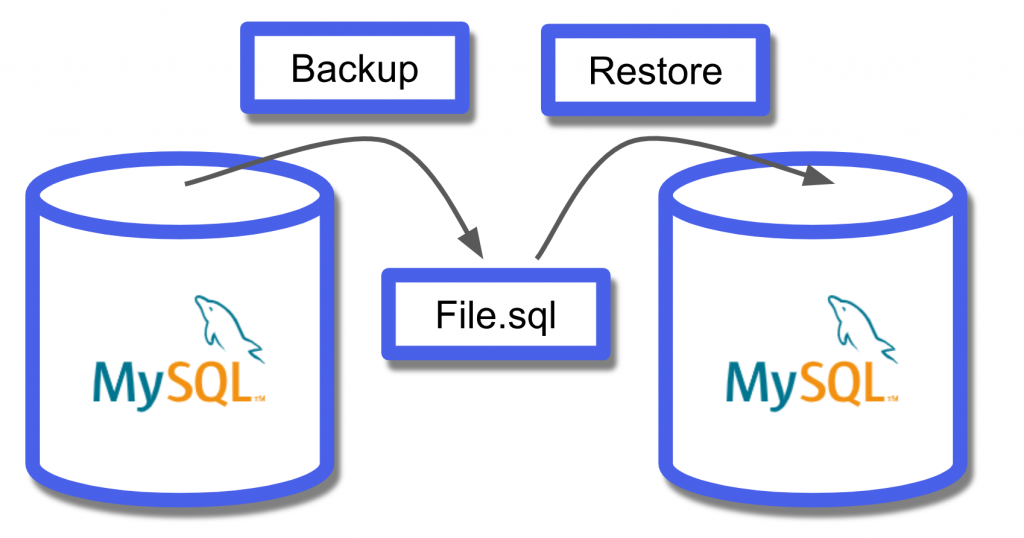
Here is a basic example of how to use mysqldump to back up a MySQL database:
Basic Command Structure:
mysqldump -u [username] -p[password] [database_name] > [backup_file.sql]
Replace [username], [password], [database_name], and [backup_file.sql] with your MySQL username, password, the name you want to back up & Back Up & restore MySQL database, and the name of the file you want to create, respectively.

Note: There’s no space between -p and your password. If you’re concerned about security and don’t want to enter your password directly on the command line (to avoid it being saved in the bash history), you can omit the password here and the system will prompt you to enter it securely:
mysqldump -u [username] -p [database_name] > [backup_file.sql]
Example Command:
mysqldump -u root -p my_database > my_database_backup.sql
After executing this command, you’ll be prompted to enter the root password. Once entered, mysqldump will create a backup of my_database & restore MySQL database into a file named my_database_backup.sql.
Backing Up All Databases:
If you want to back up all databases on the MySQL server, you can use the --all-databases option:
mysqldump -u root -p --all-databases > all_databases_backup.sql
Backing Up Specific Tables:
If you only need to back up specific tables within a database, you can specify those tables at the end of the command:
mysqldump -u root -p my_database table1 table2 > partial_backup.sql
Using gzip to Compress Backup Files:
To save space, you can compress the backup file using gzip:
mysqldump -u root -p my_database | gzip > my_database_backup.sql.gz

Restore MySQL Database
To restore MySQL database from a .sql backup file, you can use the mysql command.
Using mysql to Restore Backup:
If your backup file is not compressed, you can restore MySQL database using the following command:
mysql -u [username] -p [database_name] < [backup_file.sql]
- Replace
[username]with your MySQL username. [database_name]is the name you want to restore MySQL database. (Note: This database should already exist on the server; you can create it withCREATE DATABASE [database_name];if necessary.)[backup_file.sql]is the name of the backup file.
Example:
mysql -u root -p my_database < my_database_backup.sql
You will be prompted to enter the password for the MySQL user.

Restoring from a Compressed Backup:
If you have a .gz backup file, you need to decompress it first or pipe it directly to the mysql command to restore MySQL database using gunzip:
gunzip < my_database_backup.sql.gz | mysql -u root -p my_database
When backing up and Back Up & restore MySQL database, there are several precautions you should consider to ensure the integrity, security, and performance of your data and systems. Firstly, always perform backups during low-traffic periods to minimize the impact on your application’s performance and to ensure a consistent snapshot of your database. It’s crucial to regularly test your backups by restoring them to a separate test environment; this validates both the effectiveness of your backup process and the integrity of your backup files.
Security is another major consideration; ensure that backup files are encrypted and stored securely, ideally in a different physical location or cloud storage to safeguard against data loss due to hardware failure, natural disasters, or malicious attacks. When dealing with sensitive information, be mindful of who has access to these backups and employ strong access controls.
For restoration, always ensure that the database being restored is not in use to prevent data corruption. It’s advisable to restore to a test environment first to confirm the backup’s integrity and to avoid overwriting valuable data unintentionally in your production environment.
Be aware of the MySQL version compatibility between Back Up & restore MySQL database. Restoring data from a backup made on a newer version of MySQL to an older version can cause compatibility issues.
Lastly, consider the size of your database and the time it might take to restore it. For large databases, incremental backups may be more efficient than full backups. Planning and testing your Back Up & restore MySQL database strategy is critical to minimizing downtime and data loss in emergency situations.

