
What is FTP?
FTP stands for File Transfer Protocol. It is a standard network protocol used to transfer files from one host to another over a TCP-based network, such as the internet or an intranet. File Transfer Protocol is commonly used for transferring web pages, images, applications, and other files between a local computer and a remote server.

What is an FTP Client?
An FTP client is a software application that enables users to connect to and interact with File Transfer Protocol servers. It provides a user-friendly interface for managing the transfer of files between a local computer (client) and a remote server. File Transfer Protocol clients are commonly used for tasks such as uploading, downloading, and managing files on web servers, file repositories, or other remote systems.

Connect to FTP Using FileZilla
To connect to a server using an (File Transfer Protocol) client, you’ll need some basic information about the server you’re connecting to, such as the hostname or IP address, the port number, and your login credentials (username and password). Here are the general steps to connect using an File Transfer Protocol client:
Download and Install an FTP Client:
There are several FTP clients available, both free and paid. Some popular ones include FileZilla, WinSCP, Cyberduck. Choose one that suits your operating system (Windows, macOS, or Linux) and preferences.
Open the FTP Client:
Launch the FTP client after installation.

Enter Connection Details:
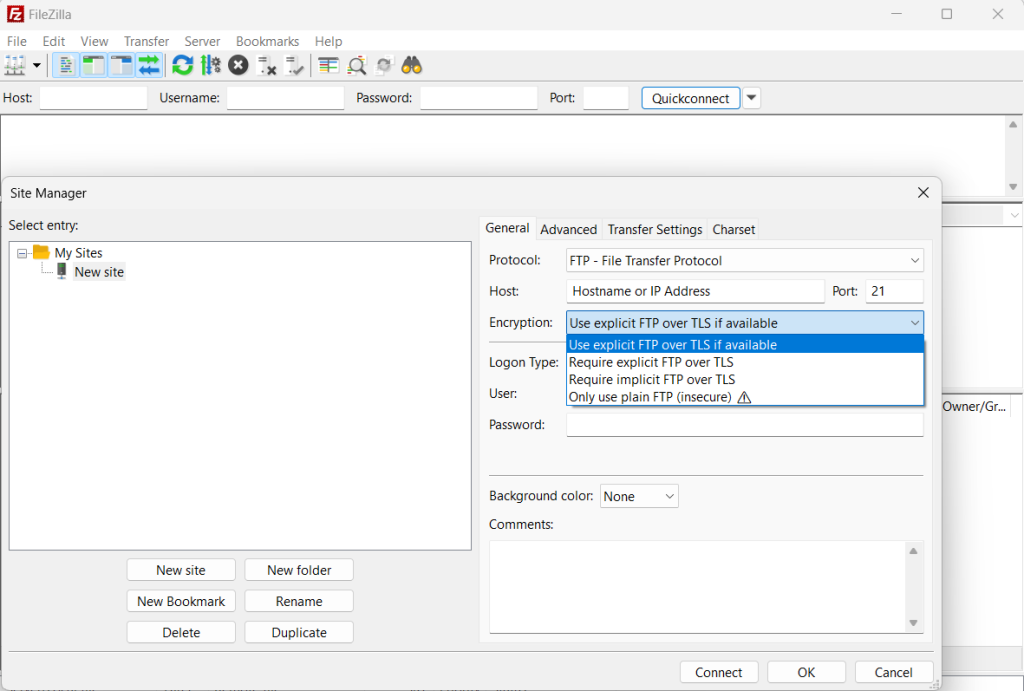
Usually, there is a section in the File Transfer Protocol client where you can enter the connection details. These details typically include:
Hostname or IP Address: The address of the File Transfer Protocol server you want to connect to.
Port Number: The default File Transfer Protocol port is 21, but the server may use a different port.
Protocol: File Transfer Protocol can use either (insecure) or FTPS (Secure) which is encrypted. Choose the appropriate option.
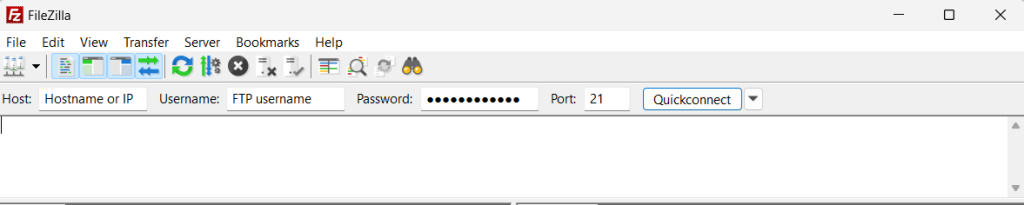
Enter Login Credentials:
Provide your FTP login credentials, including:
Username: Your FTP username. (Same as your hosting account username or the FTP account you created)
Password: Your FTP password. (Your FTP account password)
Choose Connection Type:
There are two main connection modes: Active and Passive. In most cases, you can leave it on the default passive mode. If you face connection issues, you might need to switch to active mode.
Connect to the Server:
After entering all the necessary information, click the “Connect” or “Login” button to establish a connection to the File Transfer Protocol server.
Navigate and Transfer Files:
Once connected, the File Transfer Protocol client typically presents a split-screen interface with your local files on one side and the remote server’s files on the other. You can navigate through directories and transfer files by dragging and dropping them between the local and remote directories.
Disconnect:
Upload Files Using FileZilla
Use the Local Site area of FileZilla to locate the folder containing the files you want to upload. The Local Site is where your computer files are situated.

Use the Remote Site area of FileZilla to locate the folder you want to upload your files into. The Remote Site is where your hosting files are located. It is a representation of your FileManager.
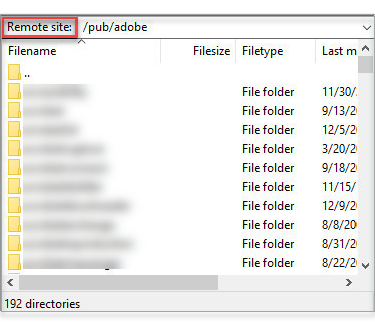
Note that the contents for each folder are displayed just below the Local Site and Remote Site areas.
Click and drag your file from the Local Site side onto the Remote Site side (Note that you can also select multiple files at a time).
Upload progress is displayed in the bottom area of FileZilla.
Upload is complete once your uploaded files are listed on the Remote Site side.
Prevent FTP Blacklisting
As a security precaution against malicious attackers, Domain.com’s File Transfer Protocol servers will blacklist the IP address of users that have an excessive number of consecutive failed login attempts. This blacklist prevents the user from gaining access to Domain.com’s File Transfer Protocol servers, even if the user begins using the correct login credentials.
To avoid the risk of being blacklisted, make sure that you keep your File Transfer Protocol client’s login credentials up to date. Additionally, we recommend that you limit the number of re-connection attempts inside of your FTP client.
To limit the number of re-connection attempts inside of FileZilla:
Go to Edit.
Click on Settings.
In the window that appears, we recommend that you enter the following settings:
    Maximum number of retries: 3
    The delay between failed login attempts: 300
When you’re finished with your File Transfer Protocol session, make sure to disconnect from the server to free up resources. Most clients have a disconnect or logout option.
Keep in mind that some File Transfer Protocol servers may have specific settings or require additional security measures. If you encounter any issues, refer to the documentation provided by the server administrator or hosting provider.

