
Rebooting a server (Virtual Private Server) is a common administrative task that can be necessary for various reasons. Here are some common reasons why you might need to restart your server:

Software Updates:
After installing software updates or making changes to the system configuration, a restart is often required for the changes to take effect. This is especially true for updates that affect the kernel or other critical system components.
System Stability:
Over time, a server’s performance may degrade due to memory leaks, resource exhaustion, or other issues. restarting the server can help restore system stability by clearing out temporary files, freeing up memory, and restarting essential services.
Configuration Changes:
When you make changes to system configurations, such as network settings or firewall rules, a restart is often needed for those changes to be applied.
Security Updates:
Security updates may require a restart to fully apply the changes and ensure that the system is running the latest, most secure versions of software.
Software Installation:
Some software installations or updates may prompt you to restart the server to complete the process. This is common when installing certain system-level libraries or drivers.
Troubleshooting:
If your server is experiencing issues or unexplained behavior, a restart can be a troubleshooting step to see if the problems persist after a fresh start. It can help identify whether the issues are related to temporary glitches or if there are underlying problems.
Resource Cleanup:
A restart can help release system resources that may have been held by processes that are no longer needed. This is particularly important for processes that may have encountered errors or issues.
Performance Optimization:
Rebooting a server can lead to performance optimization by refreshing the system state and allowing it to operate more efficiently.
How to Reboot a VPS
How to Reboot the VPS from Web Host Manager (WHM)

Login to WHM:
Open your web browser and navigate to the WHM login page. This is typically accessed by appending “:2087” to your server’s IP address or domain name (e.g., https://your_server_ip:2087). Enter your WHM username and password to log in.
Navigate to Server Reboot:
Once logged in, look for the “Server Reboot” option in the WHM interface. The specific location may vary based on the version of WHM you are using, but it’s commonly found in the left-hand navigation menu.
Initiate:
Click on the “Server Reboot” or similar option. You may be prompted to confirm the action. Confirm the restart, and the server will begin the restart process.

The server restart process may take a few minutes. During this time, your server will be temporarily inaccessible, and services will be restarted. Once the restart is complete, you should be able to log back into WHM.
Please note that initiating a server restart will cause downtime for your hosted services, so it’s advisable to schedule restart during periods of low traffic or during a maintenance window.
How to Reboot the VPS from DirectAdmin

DirectAdmin is another web-based control panel used for managing web hosting services. If you have DirectAdmin access and need to restart your server, you can follow these general steps:
Login to DirectAdmin:
Open your web browser and navigate to the DirectAdmin login page. This is typically accessed by appending “:2222” to your server’s IP address or domain name (e.g., http://your_server_ip:2222). Enter your DirectAdmin username and password to log in.
Access the Server Management Section:
Once logged in, look for the “Server Management” or similar section in the DirectAdmin interface. The exact location may vary depending on the version of DirectAdmin and any customizations applied by your hosting provider.
Reboot the Server:
In the “Server Management” section, look for an option to restart the server. It might be labeled as “Reboot Server,” “Server restart,” or something similar. Click on this option.
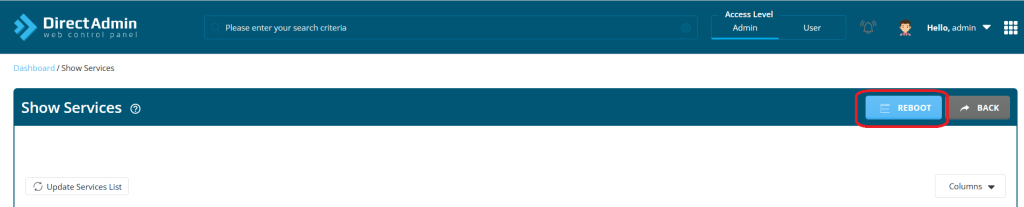
Confirm the process:
DirectAdmin may prompt you to confirm the server restart. Confirm the action if prompted.
The server restart process may take a few minutes. During this time, your server will be temporarily inaccessible, and services will be restarted. Once the restart is complete, you should be able to log back into DirectAdmin.
How to Reboot the VPS using the Command Line/SSH
To restart a server using the command line or SSH (Secure Shell), you can follow these general steps. These steps assume you have SSH access to your server:
- Open a Terminal: On your local machine, open a terminal or command prompt. You can use terminal applications like Terminal (macOS/Linux) or PuTTY (Windows) to connect to your server via SSH.
- Connect to Your server: Use the
sshcommand to connect to your server. Replaceusernamewith your actual username andyour_server_ipwith the IP address or hostname of your server.

- Restart the server: Once connected, you can use the following command to restart the server. You may need administrative privileges, so prepend the command with
sudo:
# sudo reboot
If your server is running a different Linux distribution that uses systemd, you can use the following command:
# sudo systemctl reboot
- Confirm the Reboot: After entering the restart command, the system may prompt you to confirm the action. Type ‘yes’ and press Enter.
The server will initiate the restart process. It may take a few minutes for the server to restart and become accessible again. During this time, your server services will be temporarily unavailable. - Reconnect: Once the server has restarted, you can reconnect to your server using the
sshcommand as described in Step 2.
Always make sure to save any unsaved work before initiating a restart, as it will temporarily interrupt services running on your server. Additionally, plan restart during maintenance windows or periods of low traffic to minimize the impact on users.


