
Enable Two-Factor Authentication Webuzo control panel is a great way to enhance the security of your account. Here’s how you can do it:
Steps to Enable Two-Factor Authentication in Webuzo
Log in to Webuzo:
Access your Webuzo control panel by entering the URL and logging in with your credentials.

Navigate to the Security Section:
Once logged in, look for the Security section in the left-hand menu or under the main dashboard options.
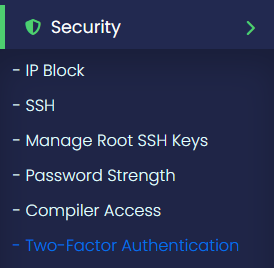
Access Two-Factor Authentication Settings:
In the Security section, you should find an option for Two-Factor Authentication. Click on it to access the 2FA settings.
Enable Two-Factor Authentication Webuzo:
You will see an option to enable 2FA Two-Factor Authentication Webuzo. Turn it on by clicking the enable or toggle button.

Choose Authentication Method:
You may be asked to choose an authentication method. Common methods include:
Google Authenticator or another time-based one-time password (TOTP) app.

Email-based authentication.
Configure 2FA:
- If you choose to use an authenticator app, you will see a QR code or a secret key.
- Open your authenticator app (like Google Authenticator) on your mobile device.
- Scan the QR code or manually enter the secret key into the app. to enable Two-Factor Authentication Webuzo

Verify and Confirm:
- After setting up the authenticator app, you will be prompted to enter the code generated by the app to verify the setup.
- Enter the code and click Verify or Confirm.

Backup Codes (Optional but recommended):
- Webuzo might provide backup codes in case you lose access to your 2FA device. Store these codes in a safe place.
Completion:
- Once verified, 2FA will be enabled for your Webuzo account. You’ll now need to enter a 2FA code each time you log in.
Important Notes:
- Make sure to keep your backup codes safe.
- If you ever lose access to your 2FA device, you can use the backup codes to regain access.
This will significantly increase the security of your Webuzo account by requiring both your password and a verification code from Two-Factor Authentication webuzo when logging in.
Enabling Two-Factor Authentication (2FA) significantly improves security, but there are some precautions you should take to ensure that your account remains secure and that you don’t get locked out. Here are key precautions:
- Keep Backup Codes Safe
Generate and Store Backup Codes: After enabling 2FA, Webuzo may provide backup codes. Store these codes in a secure place (like a password manager or a physical safe) so you can access your account if your Two-Factor Authentication webuzo is lost or unavailable.
Do Not Share Backup Codes: Never share your backup codes with anyone. These codes can be used to bypass 2FA. - Secure Your 2FA Device
Lock Your Device: Ensure that the device (smartphone, tablet) you use for 2FA is secured with a strong password, PIN, or biometric lock (fingerprint, facial recognition).
Keep Your Device Updated: Regularly update your device’s operating system and apps to protect against vulnerabilities.
Avoid Losing Your Device: Be mindful of where you keep your device, as losing it could make it difficult to access your account. Two-Factor Authentication webuzo - Enable Multiple 2FA Methods (If Available)
If Webuzo allows it, consider enabling multiple 2FA methods (e.g., both a TOTP app and email) as a backup. This can be useful if one method becomes unavailable. - Use a Secure Authenticator App
Choose a Reputable App: Use a well-known and secure authenticator app like Google Authenticator, Microsoft Authenticator, or Authy.
Backup Your Authenticator App: Some authenticator apps, like Authy, allow you to back up your 2FA tokens. This can be useful if you switch devices. - Regularly Review Security Settings
Audit Your Security: Periodically review your security settings in Webuzo to ensure everything is up-to-date and secure. Two-Factor Authentication webuzo
Revoke Access: If you suspect that someone may have accessed your account, change your password and review any devices or sessions that have access. - Be Cautious with Phishing Attempts
Verify Emails: Be cautious of phishing emails that might try to trick you into revealing your 2FA codes or login credentials.
Don’t Share 2FA Codes: Never share your 2FA codes with anyone, even if they claim to be from support or the Webuzo team. - Have a Recovery Plan
Know the Recovery Process: Familiarize yourself with Webuzo’s account recovery process in case you lose access to both your password and 2FA device.
Contact Support: If you get locked out, contact Webuzo support immediately for assistance.
By taking these precautions, you can ensure that your Webuzo account remains secure and that you’re prepared in case of any issues with your 2FA setup.

