
IP Blocker in cPanel is a security tool designed to empower website administrators with the ability to control and restrict access to their websites or servers based on specific IP addresses. Found within the cPanel control panel, this feature allows users to block individual IP addresses or entire ranges, offering a level of defense against malicious activities, unwanted traffic, or potential security threats. Users can set up both temporary and permanent blocks, providing flexibility in addressing short-term issues or dealing with persistent threats.

The user-friendly interface of the IP Blocker in cPanel simplifies the process of adding or removing blocked IP addresses, while some versions may offer logging features to track and review blocked IPs. As a security measure, it’s crucial to use the IP Blocker judiciously, ensuring that only necessary IP addresses are restricted to avoid unintentionally denying access to legitimate users. Regularly reviewing and updating the list of blocked IP addresses is recommended to maintain an effective and accurate security posture.
Follow these steps:
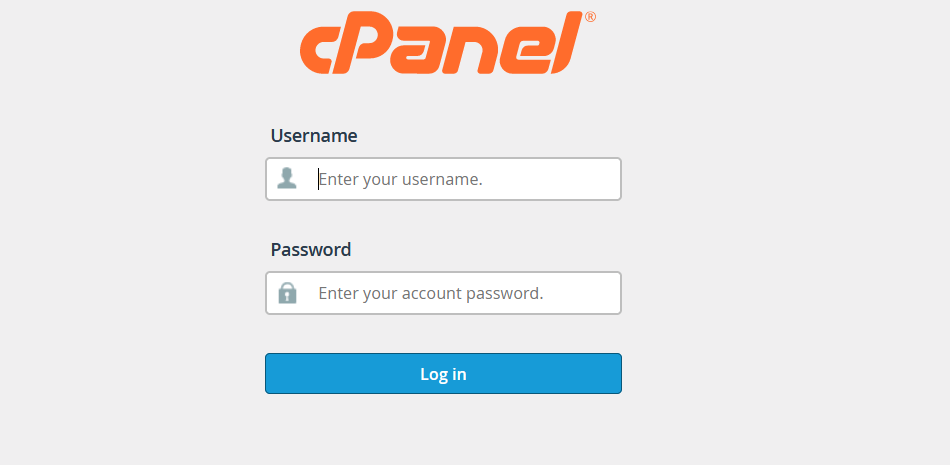
Login to cPanel:
Open your web browser and navigate to your cPanel login page. This is typically accessed by appending “/cpanel” to your domain name (e.g., http://yourdomain.com/cpanel).
Enter your cPanel username and password to log in.
Locate the IP Blocker in cPanel:
Once logged in, look for the “Security” section. The “IP Blocker” tool is usually located there.

Click on the “IP Blocker”
Add IP Address to Block:
IP Blocker in cPanel interface, you’ll find a text box where you can enter the IP address you want to block.
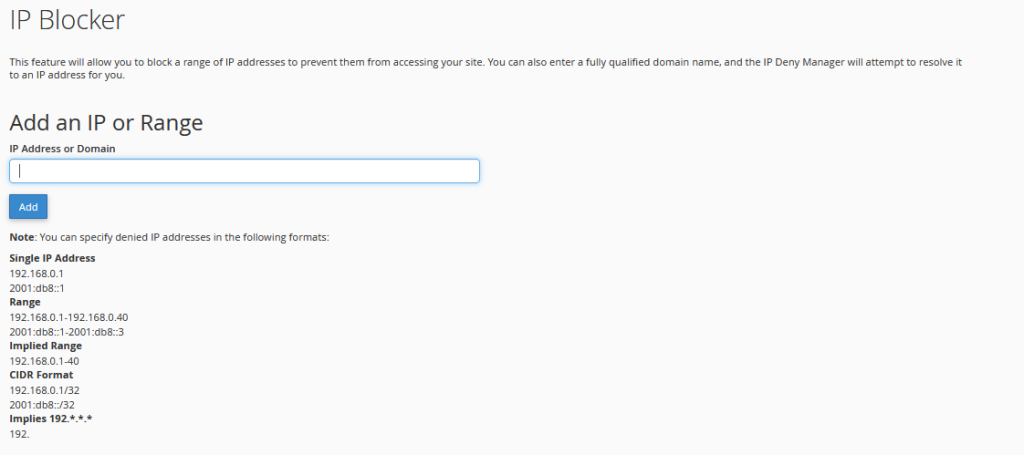
Enter the IP address or a range of IP addresses you want to block.
Click “Add” or “Block”:
After entering the necessary information, click the “Add” or “Block” button to apply the block.

Verify the Block:
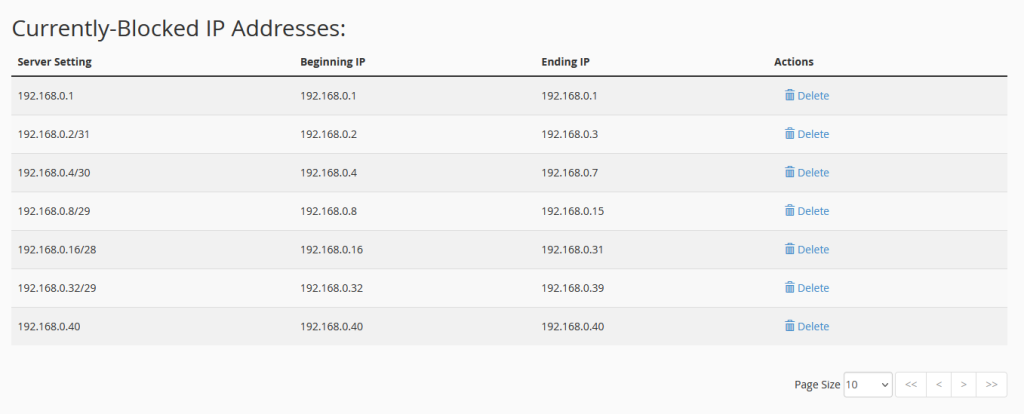
Once you’ve added the IP to the block list, verify that the IP is now listed in the blocked IP addresses section.
Remove IP from Block List (if needed):
If you ever need to unblock an IP, you can go back to the IP Blocker in cPanel, locate the IP in the list of blocked addresses, and remove it.

It’s important to note that blocking IP addresses should be done with caution. Blocking an IP address may prevent legitimate users from accessing your website if their IP falls within the blocked range. Make sure you are certain about the IPs you want to block and regularly review and update your block list as needed.
The IP Blocker in cPanel offers several advantages for website administrators and server managers in enhancing the security and stability of their online assets:
Security Enhancement:
The primary advantage of the IP Blocker in cPanel is its role in strengthening the overall security of a website or server. By blocking specific IP addresses or ranges, administrators can prevent malicious users or potential threats from accessing their resources.
Mitigation of DDoS Attacks:
The IP Blocker in cPanel can be instrumental in mitigating Distributed Denial of Service (DDoS) attacks. By quickly blocking IP addresses associated with malicious traffic, administrators can minimize the impact of such attacks and maintain the availability of their website or server.
Protection Against Brute Force Attacks:
Brute force attacks, where attackers attempt to gain unauthorized access by repeatedly trying different username and password combinations, can be countered by blocking IP addresses engaging in suspicious login activities.
Resource Conservation:
Blocking unwanted or malicious traffic helps conserve server resources. By preventing unauthorized access, the server can allocate its resources more efficiently to legitimate users, improving overall performance.
Customizable Blocking Rules:
The IP Blocker in cPanel often provides customizable options, allowing administrators to set up temporary or permanent blocks based on their specific needs. This flexibility enables them to respond effectively to different types of security incidents.
User-Friendly Interface:
cPanel’s user-friendly interface simplifies the process of managing blocked IP addresses. Administrators can easily add, remove, or modify blocked IPs without requiring advanced technical skills.
Logging and Monitoring:
Some versions of cPanel’s IP Blocker offer logging features, allowing administrators to monitor and review blocked IP addresses. This information can be valuable for analyzing security trends and responding to emerging threats.
Preventing Spam and Unwanted Traffic:
Blocking specific IP addresses associated with spam or unwanted traffic can help maintain a cleaner and more secure online environment. This is particularly useful for websites and servers that are frequently targeted by spam or abusive activities.
While the IP Blocker is a valuable security tool, it’s essential to use it judiciously and regularly review the list of blocked IP addresses to avoid unintentionally blocking legitimate users. Additionally, administrators should stay informed about the evolving threat landscape to adapt their blocking strategies accordingly.


