
Email filter in DirectAdmin is a powerful tool designed to help users manage their inboxes by automatically organizing incoming mail according to specified rules. This can greatly enhance productivity and ensure important emails are given the priority they deserve. Below are detailed steps on how to set up email filters in DirectAdmin, tailored to help you manage your email flow effectively.
In today’s fast-paced digital world, managing your inbox can often feel like a daunting task. With a constant influx of emails, it’s easy to become overwhelmed and miss important messages. However, with the right tools and strategies, you can take control of your inbox and streamline your email management process. One such tool is DirectAdmin, a popular web hosting control panel that offers powerful email filtering capabilities. In this guide, we’ll walk you through the steps to set up Email Filter in DirectAdmin, allowing you to prioritize and organize your incoming emails more efficiently.
Steps to set up email filter in DirectAdmin
Step 1: Access DirectAdmin
Accessing DirectAdmin To get started, log in to your DirectAdmin control panel using your credentials. Once logged in, navigate to the “Email Manager” section, where you’ll find various email-related settings and options.

Step 2: Locate Email Filter in DirectAdmin
Creating Email Filter in DirectAdmin Within the Email Manager section, locate the option for “Email Filters” or “Filter Rules.” Click on this option to access the email filtering interface. Here, you’ll see a list of any existing filters you may have set up, as well as options to create new ones.

Step 3: Adding a New Filter
Adding a New Filter To create a new email filter, click on the “Add Filter” or “Create Filter” button. You’ll be prompted to specify various criteria for the filter, including the conditions that incoming emails must meet to trigger the filter and the actions to be taken when a match is found.

Step 4: Setting Filter Criteria
Setting Filter Criteria Define the criteria for your filter based on your specific needs. This may include filtering emails based on sender email addresses, subject lines, keywords in the body of the email, or other factors. DirectAdmin offers a range of options for specifying filter criteria, allowing you to create highly customized filters to suit your preferences.

Step 5: Defining Filter Actions
Defining Filter Actions Once you’ve set the criteria for your Email Filter in DirectAdmin, specify the actions to be taken when a matching email is detected. Common actions include moving the email to a specific folder or directory, marking it as read or unread, forwarding it to another email address, or deleting it altogether. Choose the actions that best align with your email management strategy.

Step 6: Testing and Saving the Filter
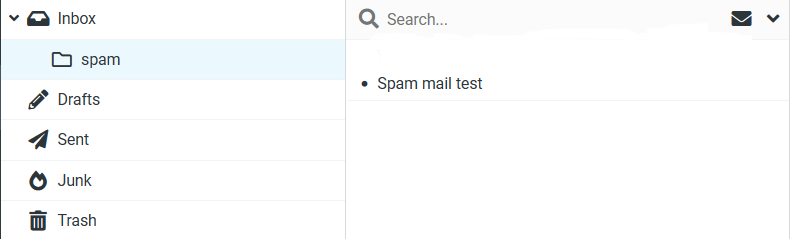
Testing and Saving the Email Filter in DirectAdmin Before saving your filter, it’s a good idea to test it to ensure it behaves as expected. You can do this by sending test emails that match the filter criteria and verifying that the filter triggers the desired actions. Once you’re satisfied with the filter’s performance, save your changes to activate the filter.
Step 7: Managing and Fine-Tuning Filters
Managing and Fine-Tuning Email Filter in DirectAdmin After creating your filters, periodically review and refine them as needed to adapt to changing email patterns and priorities. DirectAdmin allows you to easily edit, delete, or disable filters as required, giving you full control over your email filtering setup.
By implementing email filtering in DirectAdmin, you can significantly improve your email management efficiency and reduce the time spent sorting through irrelevant messages. Whether you’re looking to prioritize important emails, reduce spam, or organize your inbox more effectively, Email Filter in DirectAdmin offer a powerful solution. Follow the steps outlined in this guide to set up and customize email filters in DirectAdmin, and take control of your inbox today.


